1. You Can Shut Down in Two Clicks
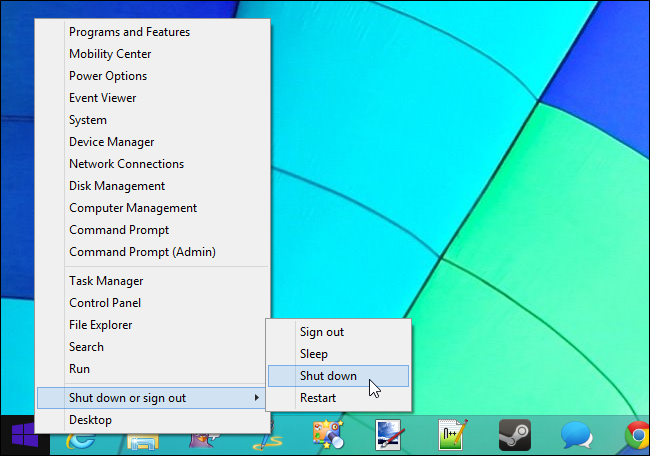
Press Windows Key + X or right-click the Start button to open the power user menu. This menu contains shortcuts with quick access to commonly used options like the Control Panel, Task Manager, and File Explorer.
2. Show Administrative Tools

The system tools found in the Windows Administrative Tools folder — applications like the Task Scheduler, Event Viewer, Services, and Computer Management tools — are normally hidden. They won’t appear in your All apps list and you won’t be able to find them by searching your installed applications, either. If you need them, head to the Start screen, press Windows Key + C, select Settings, select Tiles, and enable the Show administrative tools option on the Tiles pane.
3. Windows To Go

Of the entire list here, this is one feature that offers the most convenience to users. Windows To Go allows users to make a copy of their OS complete with their settings, wallpapers, files and even apps, into a USB/Pen drive. Plugged it into another computer with Windows 8 already installed, and you can boot up the PC and make it look exactly alike the OS you normally use, with all settings intact.
4. Windows Live Syncing

Similar to Windows To Go, the new Windows 8 will provide Windows Live syncing, such that users can login on any Windows 8 PC with ‘Live ID’ and get back their own personalized settings on it. The desktop will look the same every time the user login on a PC with their Windows Live account. Migrating to a new PC is probably made easier when the user has all the essential settings synced.
5. Built-In Antivirus

Windows 8 finally includes an integrated antivirus. The antivirus is named Windows Defender, although anyone who has used the free Microsoft Security Essentials will recognize the interface immediately. In Windows 8 Microsoft Security Essentials just has been renamed to Windows Defender.
Press Windows Key + X or right-click the Start button to open the power user menu. This menu contains shortcuts with quick access to commonly used options like the Control Panel, Task Manager, and File Explorer.
2. Show Administrative Tools
The system tools found in the Windows Administrative Tools folder — applications like the Task Scheduler, Event Viewer, Services, and Computer Management tools — are normally hidden. They won’t appear in your All apps list and you won’t be able to find them by searching your installed applications, either. If you need them, head to the Start screen, press Windows Key + C, select Settings, select Tiles, and enable the Show administrative tools option on the Tiles pane.
3. Windows To Go
Of the entire list here, this is one feature that offers the most convenience to users. Windows To Go allows users to make a copy of their OS complete with their settings, wallpapers, files and even apps, into a USB/Pen drive. Plugged it into another computer with Windows 8 already installed, and you can boot up the PC and make it look exactly alike the OS you normally use, with all settings intact.
4. Windows Live Syncing
Similar to Windows To Go, the new Windows 8 will provide Windows Live syncing, such that users can login on any Windows 8 PC with ‘Live ID’ and get back their own personalized settings on it. The desktop will look the same every time the user login on a PC with their Windows Live account. Migrating to a new PC is probably made easier when the user has all the essential settings synced.
5. Built-In Antivirus


