1>> Download the setup file from here.
2>> The setup file is around 94 MB and would take few minutes to download.
3>> Once downloaded, double click on the setup file avast_internet_security_setup.exe .
4>> Once the installation begins, you will be given 3 options on the mode of installing : a) Express Install b) Compatible Install c) Custom Install.
Here, choose “Express Install” if you don’t have any other antivirus software already installed on your computer.
Choose “Compatible Install” if you already have an antivirus application running on your computer and you want to use avast! Internet Security 7 as a secondary line of defense.
I don’t recommend “Custom install” option for new users however naive users can go ahead with it.

5>> After choosing on of the modes, you will soon be asked to enter the avast Internet Security 7 License File or activation code if you have one.
Else you can continue with the “Install in trial mode“.
You can also enter an activation key by choosing the option “Supply an activation code” . In this case you will need to enter name, email and some more details.
 6>>A typical avast Internet Security 7 License File would look like this :

It would have a typical .avastlic extension.
To use this license file, choose “Supply a license file” mode and click on browse.
If you want a avast Internet Security 7 license file or activation code for yourself, you can Google it
or you can download the one I am providing here..
1. Avast Internet Security License file Valid till Apr 2013.
2. Avast Antivirus Pro License file Valid till Sep 2012.
3. Avast Internet Security License file Valid till Aug 2013. NEW (updated)
Now browse for the file to the location where it is stored.
Click on “Next>” .

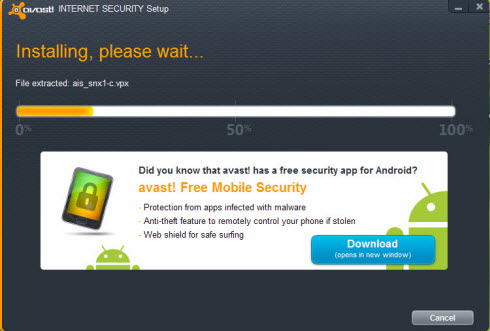
7>>The installation will now begin and would take a few minutes to complete. So please be patient and have a sip of coffee.

8>> Soon after installation is complete, avast Internet Security 7 starts to scan your computer for any viruses or malwares that would eventually exist.
You can cancel the process if you don’t like, but I highly recommend it.
 9>> While scanning, avast Internet Security 7 takes action on viruses and worms. After that, you will be asked to restart your computer. So click on “Finish” .
 10>> After the restart, open avast Internet Security 7 and update the virus signature database.
 Your computer is now protected.
2>> The setup file is around 94 MB and would take few minutes to download.
3>> Once downloaded, double click on the setup file avast_internet_security_setup.exe .
4>> Once the installation begins, you will be given 3 options on the mode of installing : a) Express Install b) Compatible Install c) Custom Install.
Here, choose “Express Install” if you don’t have any other antivirus software already installed on your computer.
Choose “Compatible Install” if you already have an antivirus application running on your computer and you want to use avast! Internet Security 7 as a secondary line of defense.
I don’t recommend “Custom install” option for new users however naive users can go ahead with it.

Else you can continue with the “Install in trial mode“.
You can also enter an activation key by choosing the option “Supply an activation code” . In this case you will need to enter name, email and some more details.

It would have a typical .avastlic extension.
To use this license file, choose “Supply a license file” mode and click on browse.
If you want a avast Internet Security 7 license file or activation code for yourself, you can Google it
or you can download the one I am providing here..
1. Avast Internet Security License file Valid till Apr 2013.
2. Avast Antivirus Pro License file Valid till Sep 2012.
3. Avast Internet Security License file Valid till Aug 2013. NEW (updated)
Now browse for the file to the location where it is stored.
Click on “Next>” .

7>>The installation will now begin and would take a few minutes to complete. So please be patient and have a sip of coffee.
8>> Soon after installation is complete, avast Internet Security 7 starts to scan your computer for any viruses or malwares that would eventually exist.
You can cancel the process if you don’t like, but I highly recommend it.


